
How to Repair MP4 Files That Won’t Play on Windows?
MP4 is one of the most popular video file formats, known for its compatibility with devices such as mobiles, cameras, streaming platforms, and most media players. However, sometimes you may encounter frustrating issues when these MP4 files refuse to play on a Windows computer. If you’re getting error messages like “This file isn’t playable” or “Unsupported format” while playing MP4 videos on Windows Media Player or VLC media player, don’t worry!
Fortunately, there are several video repair methods available online that you can try to repair MP4 files that won’t play on Windows. This guide explains why MP4 files stop working and provides step-by-step solutions to repair them on Windows. Let’s explore in detail!
Understanding Why MP4 Videos Won’t Play on Windows
Before you apply any MP4 video repair method, it’s important to understand what might have caused the issue. Some main reasons why MP4 videos fail to play on your media player include:
Corrupted File Structure
MP4 files contain structured video, audio, and metadata; if damaged by interruptions, power loss, or incomplete transfers, playback may fail.
Missing or Unsupported Codec
Your MP4 video is encoded in different codecs (like H.264 or HEVC). If your Windows PC doesn’t support the specific codec used, playback may fail and cause errors while playing videos.
Interrupted Download and Transfer
If your video is not properly downloaded on your PC or the transfer process is interrupted during copying from a device, the file may be incomplete.
Virus or Malware Damage
Malicious programs like viruses or malware may infect the video files stored on your PC and make them unplayable.
Storage Device Errors
Bad sectors on hard drives or USB drives may corrupt stored video files, causing playback errors, data loss, or permanent damage.
How do I Fix MP4 Videos That Won’t Play on Windows?
Irrespective of the above reasons for MP4 video issues, there are several video repair methods available that can help you restore playback quickly and safely. Just go with the below methods one by one to repair your MP4 files easily:
Method 01: Try Playing the File in Another Media Player
Before you apply any complex workaround, try basic methods like changing your media player or your video file format. If the issue is player-specific, you can try a different video player. VLC media player is one of the best troubleshooting tools because it supports a wide range of codecs.
To play your video in the VLC player:
- Install the VLC player on your device (if it is not already installed).
- Right-click the MP4 file that you need to play.
- Select Open with, then choose VLC Media Player.
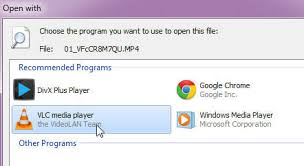
If the file plays in VLC but not in Windows Media Player, the problem is likely a codec issue—not file corruption.
Method 02: Update or Install Codecs
If your MP4 file uses a codec which is not supported by your system, you may need to install a codec pack or update Windows. For this:
- Update Windows via Settings > Windows Update.
- Install a trusted codec pack like K-Lite Codec Pack.
Note: Always install the required codec packs from trusted third-party sites – don’t trust unauthorised sources.
Method 03: Use VLC’s Built-In Repair Feature
VLC is a versatile media player that can help you play your video files of different methods and repair them in multiple ways. It offers an in-built video repair feature that can repair minor corruption issues. All you have to do is:
- Firstly, launch the VLC media player.
- Go to Media > Convert/Save.
- Tap Add to add the corrupted MP4 file that you need to repair and tap Convert.
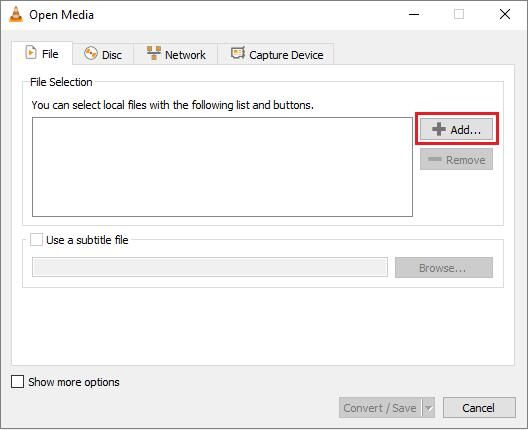
- Select a profile like “Video – H.264 + MP3 (MP4).”
- Choose a destination and click Start.
Once the process completes, check if your video plays properly. If not, you can use third-party video repair software.
Method 04: Repair Using Professional Video Repair Software
If your MP4 video is severely corrupted, then the above methods might fail to provide you desired result. In such a case, you can use professional video repair software like Stellar Repair for Video to fix your videos in a few simple clicks. This all-in-one video repair software can help you repair damaged or corrupted video files of several file formats, including MP4, MOV, AVI, etc. You can use this tool to fix video damaged due to incomplete downloads, improper file transfer, malware or virus attacks, etc.
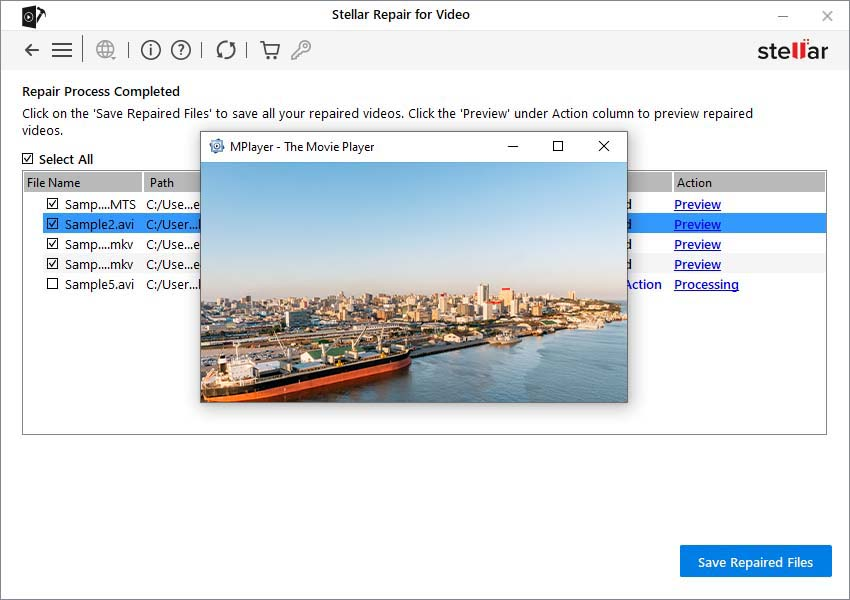
The Stellar Repair for Video software also lets you preview the repaired files before saving them on your device. The ‘Advance Repair‘ feature of this software lets you repair severely corrupt videos using a ‘Sample File’, i.e., a working file of any size created from the same device and of the same format as your corrupt video file. It allows you to repair damaged video files in three simple clicks, i.e., Select, Scan, and Recover. Let’s explore the repair process in detail:
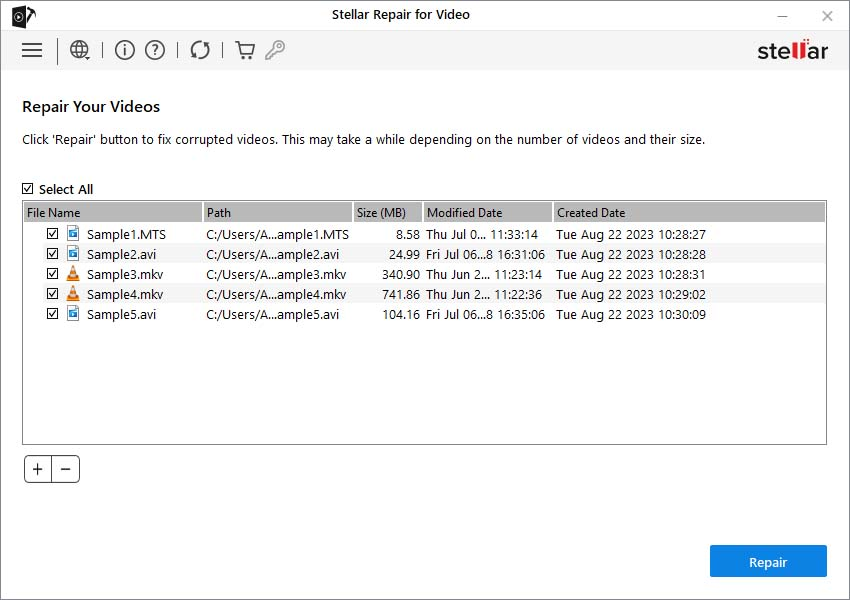
Step 1: Download and install the Stellar Repair for Video software on your Windows PC. Launch the software and from the homepage, click Add Videos to upload the corrupt or damaged MP4 file that you need to repair.
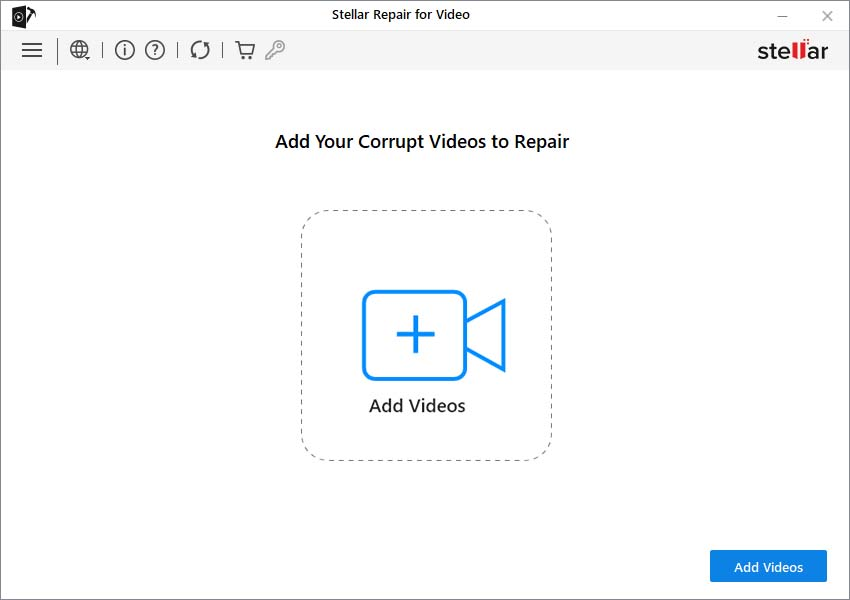
Step 2: After adding the files, click the Repair button to initiate the repair process. The software will begin analysing and repairing the video structure.
Step 3: Once the repair process completes, preview the repaired files and check if the video plays properly with audio and video synced. Click the Save Repaired Files button to save the repaired videos to the desired location on your PC.
Additional Tip: Preventing MP4 Corruption in the Future
Repairing an MP4 file that won’t play on Windows can be challenging, but prevention is always better. Here are some additional tips that you can consider to avoid MP4 damage issues in the future:
- Safely Eject Devices: Always use “Safely Remove Hardware” before unplugging USB drives to prevent data corruption and ensure video files close properly.
- Avoid Interruptions During Recording: Never remove batteries or power off cameras while recording, as unfinished files may become corrupted and unplayable.
- Keep Windows Updated: Install Windows updates regularly to ensure improved codec support, security patches, and better overall video playback compatibility.
Wrapping Up
MP4 playback issues can be frustrating, but the aforementioned video repair fixes can help you easily repair your damaged video files. The problem might be as simple as a missing codec or as complex as severe file corruption.
You can easily apply the above fixes one by one to make your videos playable again. Start with the simplest solutions trying another media player or converting the file before moving to advanced repair tools like Stellar Repair for Video. In many cases, you can restore your video without losing quality.
By understanding the causes of MP4 corruption and applying the right fix, you can save valuable videos and prevent similar issues in the future.